|
1)
Open
Microsoft
Outlook
or
Exchange
2)
From
the
drop-down
menus,
select
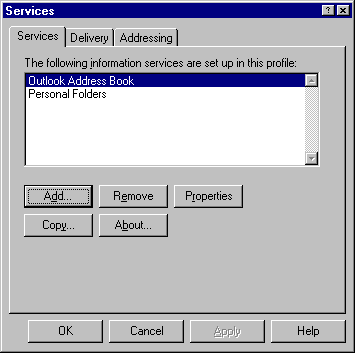
Tools-Services
3)
If
Internet
Mail
appears
on
the
list
of
services,
highlight
it
and
select
Properties
and
go
to
Step
6
4)
If
Internet
Mail
does
not
appear,
select
Add
5)
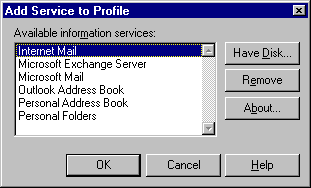
After
selecting
"Add"
select
"Internet
Mail"
and
click
OK
then
go
back
to
Step
3
6)
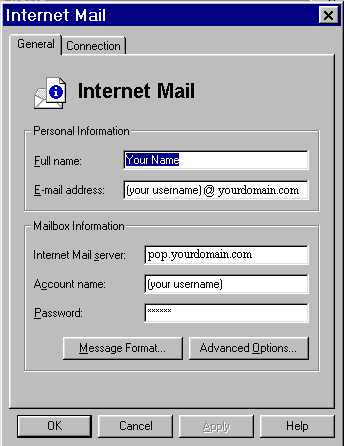
After
selecting
Properties,
on
the
Services
tab
enter
your
account
info
as
shown
below
7)
After
entering
the
information
as
above,
click
on
Advanced
Options
8)
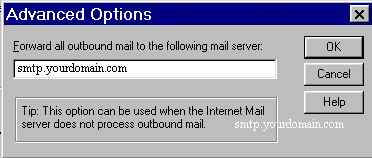
Enter
the
name
of
the
outbound
(SMTP)
mail
server
as
shown
below
9)
Click
OK
10)
Click
on
the
Connection
tab
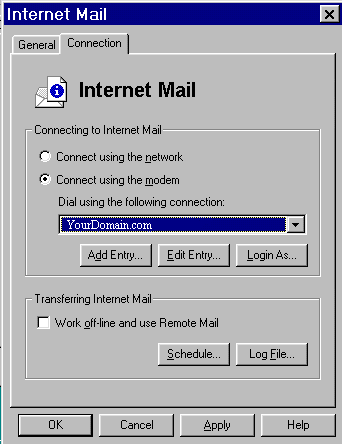
11)
Make
sure
Connect
using
the
modem
is
selected.
Under
Dial
using
the
following
connection
make
sure
that
your
dial-up
networking
connection
is
selected.
If
it
is
not,
click
on
the
down
arrow
on
the
right-hand
side
of
the
box
and
select
your
connection.
Note:
during
setup
you
may
have
chosen
another
name
(i.e.
"My
Connection",
"YourDomain.com",
"home",
etc.)
for
your
connection.
Just
select
whatever
name
is
associated
with
your
dialup.
12)
Click
Apply
and
OK
to
save
your
settings
You
are
now
ready
to
begin
sending
and
receiving
email
with
Microsoft
Exchange
or
Outlook
97.
For
program
features
and
functions,
consult
your
Outlook
"Help"
files
or
contact
Microsoft
Technical
Support
online
at:
http://www.microsoft.com/Support/ |



