|
1.
Launch
Netscape
Navigator
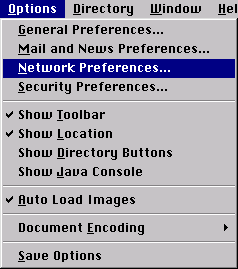
2.
From
the
'Options'
menu
select
'Network
Preferences'.
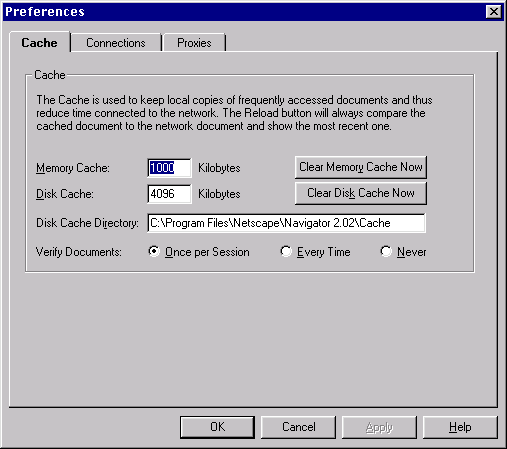
3.
When
you
click
on
that,
a
window
called
‘Preferences’
will
pop
up.
Normally,
it’ll
look
like
this:
4.
See
the
tab
called
‘Proxies’
in
this
window,
under
'Network'?
Click
on
that.
The
Proxies
section
of
Preferences
will
show
itself.
It
usually
looks
like
this:
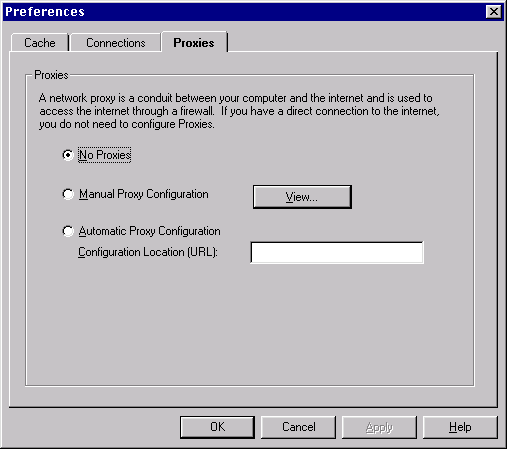
5.
Normally,
the
radio
button
called
'No
Proxies'
is
selected.
To
get
to
the
proxy
settings
window,
you
should
select
'Manual
Proxy
Configuration'.
When
you've
done
that,
click
on
'View...'.

6.
Now
a
window
called
'Manual
Proxy
Configuration'
will
show
up.
Normally,
all
the
fields
in
the
window
are
blank.
Here's
what
it
looks
like:
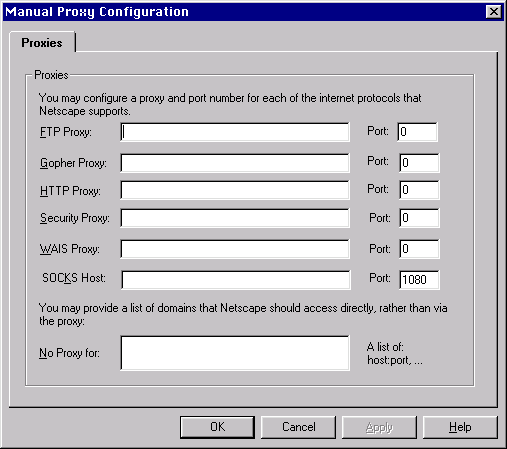
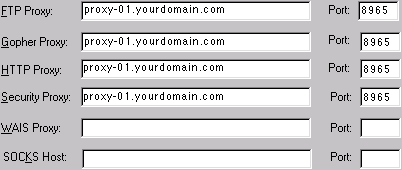
7.
It
is
at
this
point
when
you
can
put
the
proxy
address
and
port
number
the
fields.
A
sample
screenshot
is
shown
below.
7.
Once
you
are
done
filling
in
the
information
(proxy-01.asburyusa.net),
click
the
'OK'
button
to
leave
the
'Manual
Proxy
Configuration'
window,
and
then
click
the
'OK'
button
to
leave
the
'Preferences'
window.
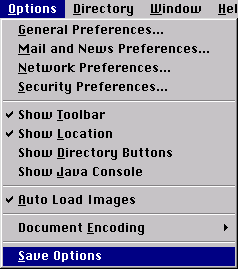
8.
You
will
now
need
to
save
your
settings.
From
the
'Options'
menu,
select
'Save
Options'.
Once
you
have
done
that,
your
proxy
settings
will
be
saved
for
future
use.
|



