|
|
About Us
Access
Numbers
Web
E-Mail
Customer
Support
Contact
Us
|
|
Windows
ME
|
|
|
|
|
|
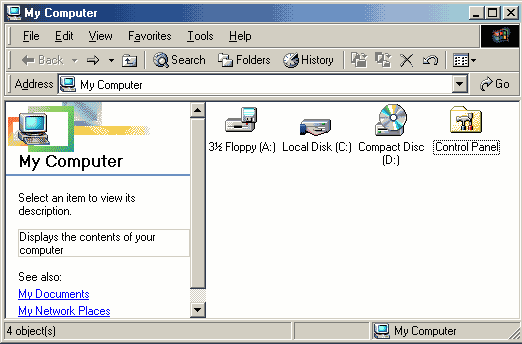
- On
your
desktop,
double
click
the
My
Computer
Icon
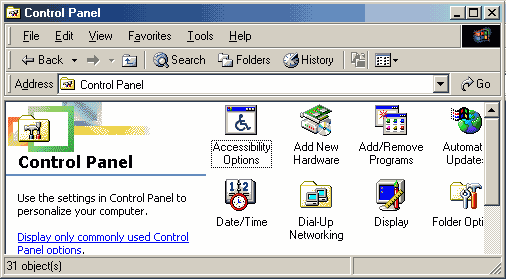
- Double
Click
the
Control
Panel
icon
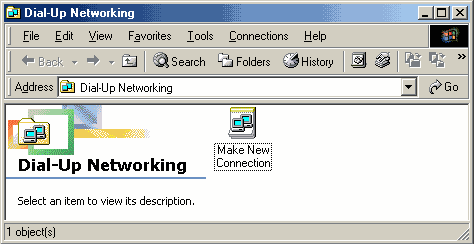
- Double-Click
the
Dial-Up
Networking
icon
- Double-Click
the
Make
New
Connection
icon.
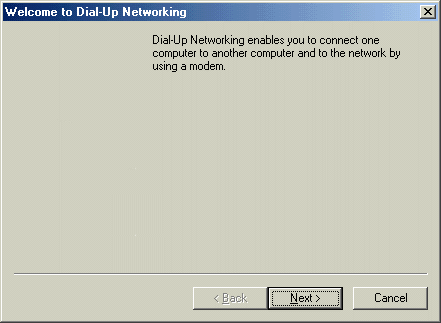
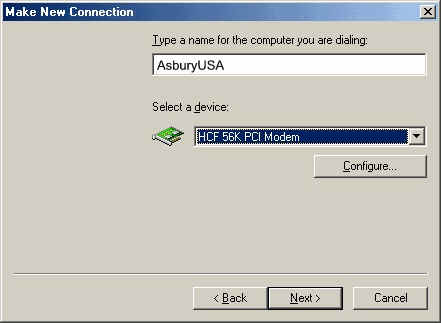
- Type
in
a
name
for
the
internet
connection
(i.e.
AsburyUSA)
- Then
select
your
modem
name
from
the
drop
down
menu
- Click
the
Next
button
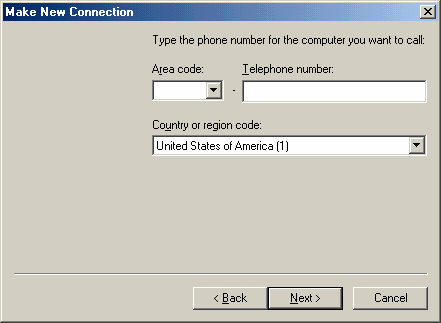
- Type
in
the
Local
Access
number
that
you
will
be
using
to
connect
to
AsburyUSA
- Click
the
Next
button
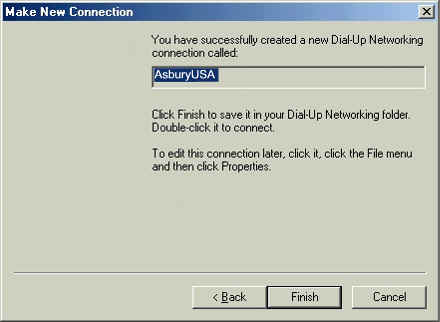
- You
have
now
created
your
Dial-Up
Networking
connection.
- Click
the
Finish
button
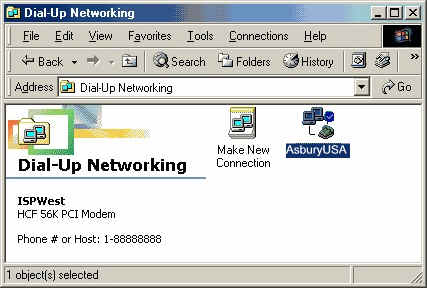
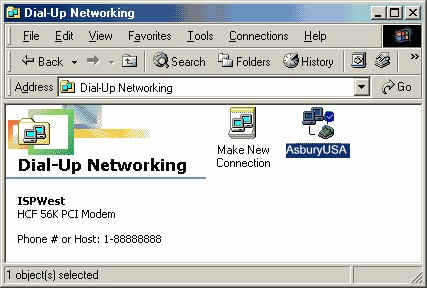
- In
the
Dial-Up
Networking
window,
right
click
on
the
AsburyUSA
Dial-Up
icon
- Click
Properties
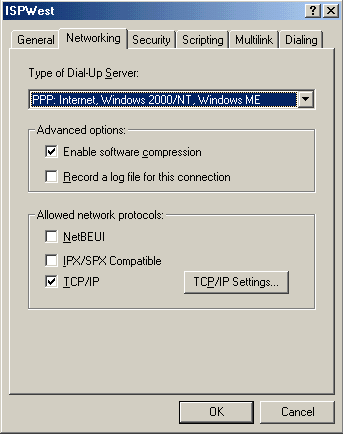
- Under
the
Networking
Tab
- Under
Advanced
Options,
make
sure
the
“Enable
software
compression”
is
checked,
and
that
“Record
a
log
file
for
this
connection”
is
not
checked.
- Under
Allowed
network
protocols,
make
sure
that
“NetBEUI”
and
“IPX/SPX
Compatible”
are
not
checked,
and
that
“TCP/IP”
is
checked
- Then
click
on
the
TCP/IP
Settings
button
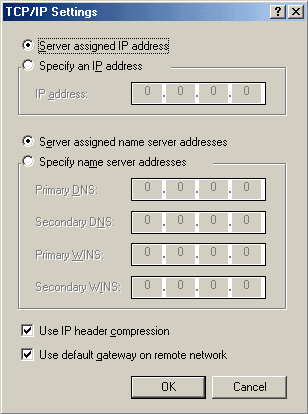
- In
theTCP/IP
Settings
window,
make
sure
“Server
assigned
IP
address”,
and
“Server
assigned
name
server
addresses”
are
selected
- Also,
make
sure
that
both
“Use
IP
header
compression”
and
“Use
default
gateway
on
remote
network”
are
checked
- Click
the
OK
button
- To
create
a
shorcut
on
your
desktop,
right
click
on
the
AsburyUSA
icon
and
click
Create
Shortcut
- Now,
in
the
Dial-Up
Networking
window,
double
click
on
the
AsburyUSA
icon
to
connect
to
the
internet
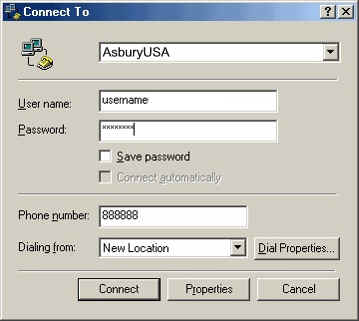
- Enter
your
username.
Be
sure
to
add
“atc”
before
your
username
and
one
of
the
following
extensions
behind
it.
"@usa,
@surf.net,
@pop.net,
@world.net"
(Example:
atcusername@world.net)
- Then
type
in
your
password
- Click
the
Connect
button
to
log
on
to
the
internet
|
|

|
|
|
|
 |
P.O. Box 915 Pismo Beach CA 93448
Toll
Free Phone: 877-351-8407
E-Mail:
AsburyUSA.net |

|
|